Prepare an approved adult reference image
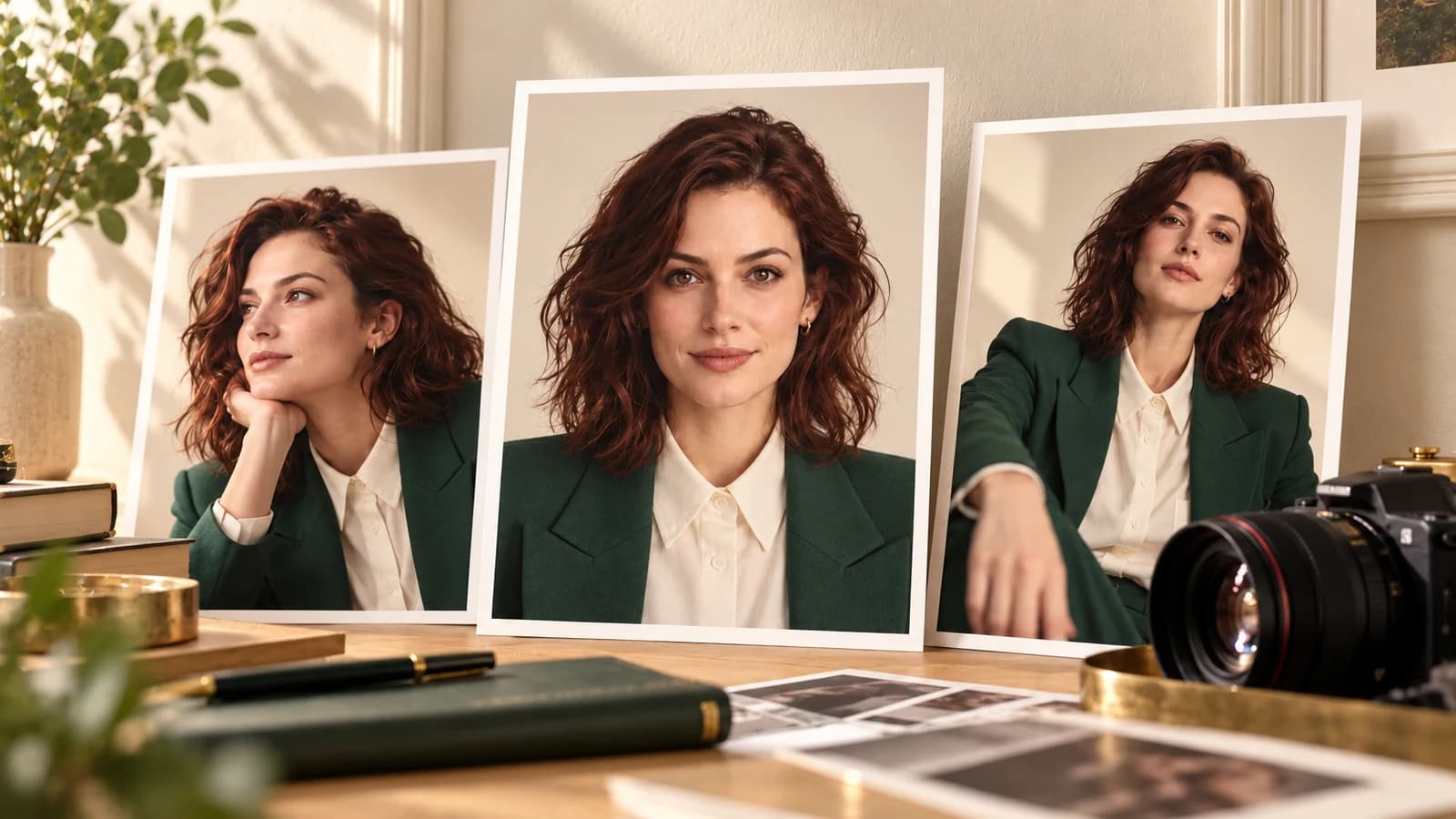
Start with a source image you are authorized to use. Everyone depicted in an adult project must be 18 or older; a real person's likeness needs explicit permission for the intended use. For a fictional character, make the adult age clear in the original creative brief.
A usable reference has one clear subject, an unobstructed face, coherent anatomy, and enough room for the motion you intend. Review the still at full size before asking a video model to animate it: motion can make an existing artifact more noticeable. Krea 2 Turbo can create an original still, which you then download for the next task.
Use image references in Playground, not the text-only form
The Minimax H3 Workshop generates from a text prompt. The Text & Image to Video Playground exposes optional image and audio reference inputs for the underlying service. Open that page, inspect the selected service and its current content rules, and supply your image using its reference controls.
For an uncensored image-to-video project, verify support for that exact request before submitting. A platform's adult-capable image generator does not establish the policy of every video model. If the chosen service does not support the intended content, use a compatible service or a permitted creative brief.
Keep a record of the image, prompt, duration, dimensions, and task ID. Copying the portrait description into a text-only request does not pass the actual reference image and may produce a different character.
Describe what moves and what stays still
Use the reference for appearance and the prompt for motion. Begin with one small action and a short shot. If you need a static frame, ask for a locked camera and an unchanged background. Do not combine those instructions with a tracking shot or a camera push-in.
The following prompt is a non-explicit motion recipe for an authorized adult portrait. It guides a model rather than enforcing a frame lock or guaranteeing identity preservation.
Subtle portrait motion with a locked camera
Use the supplied adult portrait as the appearance and composition reference. One continuous short shot: a natural blink and a small relaxed smile. Preserve the subject's original body orientation, wardrobe, and pose. Locked camera, unchanged framing, constant background and lighting. No zoom, pan, tilt, cuts, or scene transition. No added people, text, or logos.
Copy this recipe, then paste it into the matching prompt field.Choose the transformation your project actually needs
Image-to-video creates motion from a still. Video Face Swap changes a face in an existing clip. Lip Sync pairs a portrait or clip with speech audio. These solve different jobs, and each creates its own task. Use the face-swap workflow for an authorized adult edit only when the base clip's performance already fits.
For a scripted presenter with reusable assets, Workshop Avatar is the more direct route. Its saved portrait and linked base video can be reused when available. The content scope of the image and video services should not be assumed to apply to every speech or avatar model.
Review the result, then automate the successful workflow
Once a task ID is returned, find the task in Account Results and review the complete video. Check the reference identity, camera movement, background, and first-to-last-frame continuity before reusing the clip.
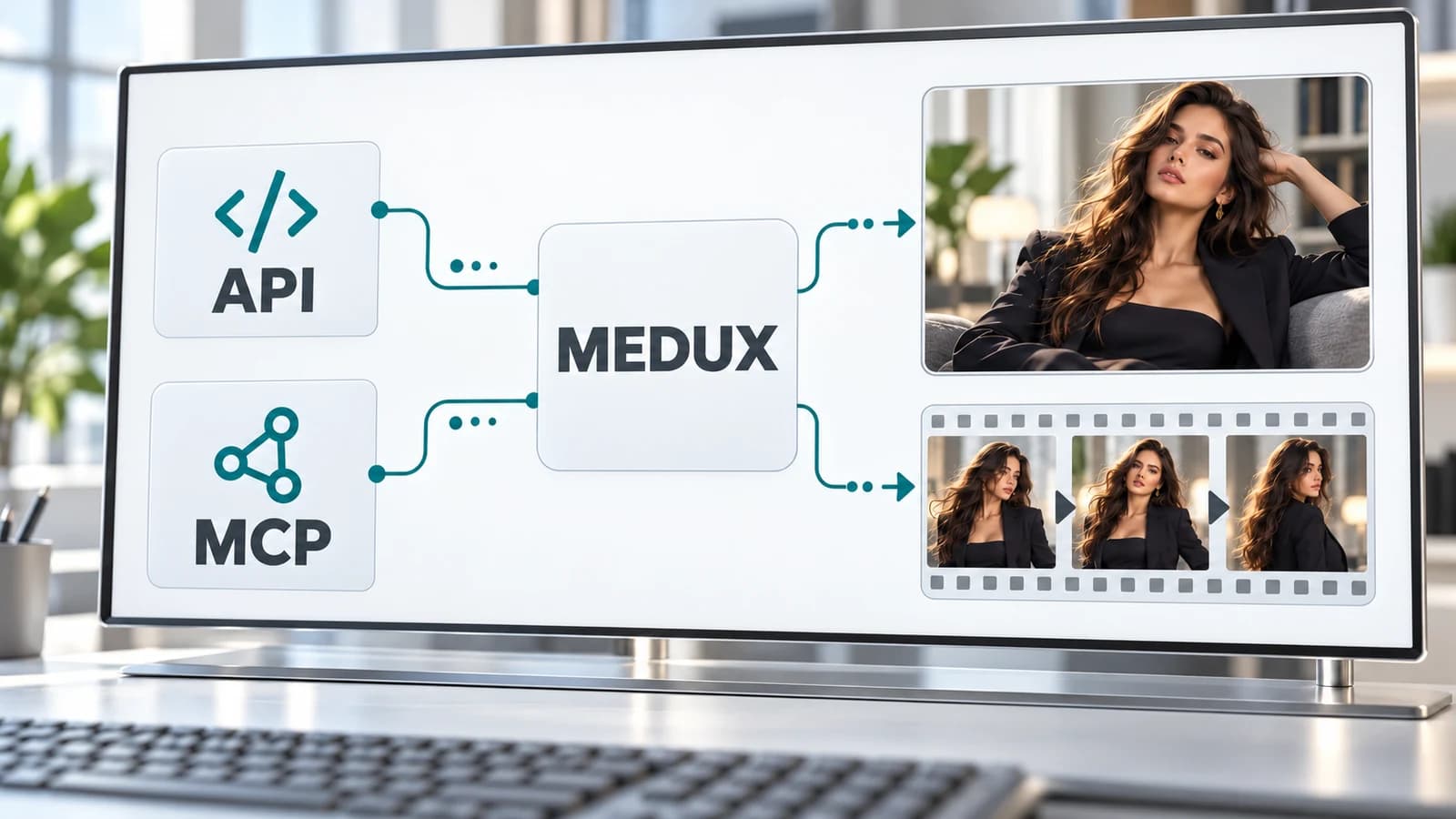
For an integration, read the current Text & Image to Video API and its MCP Tool section. Use the documented reference arguments rather than guessing a field name. Store the relationship between the input image, submitted task, and output video in your own application if you need a reusable media library.
Frequently asked questions
Can I upload an image to the Minimax H3 Workshop?
The Workshop currently takes a text prompt. Use Text & Image to Video in Playground or the documented API for optional image references. These are separate input experiences.
Does uncensored image to video mean every model accepts NSFW?
No. Check the selected service's current rules and the intended request. Adult-content support on one Medux tool is not a guarantee about every video, speech, or avatar model.
Can I use a photo only to make a talking video?
For a portrait speaking supplied audio, Lip Sync is the relevant workflow. For a reusable scripted presenter, use Avatar. You do not need a new scene-generation task merely to choose a tool.